

On this page
Connect every AI agent to the Focus Pad MCP server in DevWorkspace Pro, and they all read and write one task list, with one collection for each project.
It is 11:00. Claude Code is fixing a bug in the API repo. A second session is writing tests in the mobile app. A third is upgrading dependencies in a side project. Each one ends with "Here is what you should do next."
Three chats, three lists of next steps, and you are the only one who sees all of them. By lunch, you have lost at least one.
This guide shows how to give all of those agents one place to write: Focus Pad, through its local MCP server. Each project gets its own collection. You see every collection in one small window that stays on top.
In short
- Connect the Focus Pad MCP server once with
--scope user. Every Claude Code session in every project can use it. - Each agent writes to the collection for its project. You switch collections with ⌘ + K.
- Safe edits stop an agent from changing the wrong task when the list changed.
- Name colors after agents so you can see who wrote what.
Why one list and not one per agent
Agents already keep their own task lists while they work. Those lists are for the agent. They belong to one session, and they live inside one tool.
You need a different list: the work that is left for you, from every agent, in one place, with reminders. That list must survive the session and must not care which agent or which repo wrote to it.
| Need | Agent's own task list | Focus Pad collections |
|---|---|---|
| Visible to you all day | No | Yes, always-on-top window |
| Shared by agents in different repos | No | Yes |
| You can add and complete tasks too | Rarely | Yes |
| Deadlines and repeating reminders | No | Yes |
Set it up once
- Open Preferences → Focus Pad in DevWorkspace Pro.
- Turn on MCP server for AI agents and click Save.
- Click the copy icon next to Connect Claude Code and run it:
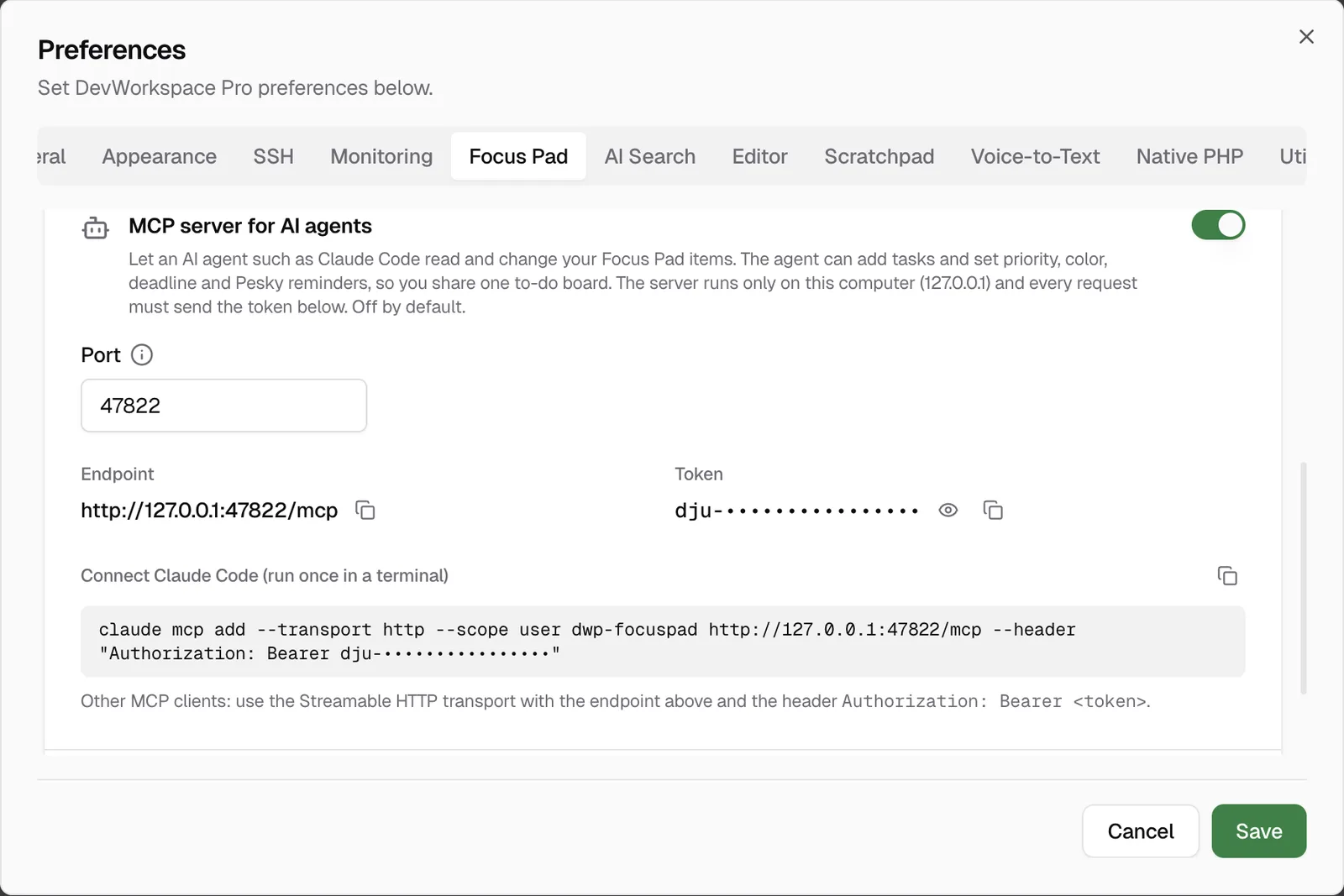
claude mcp add --transport http --scope user dwp-focuspad http://127.0.0.1:47821/mcp --header "Authorization: Bearer <token>"
--scope user is the important part. It makes the server available in every project, so each new session can reach the same list. For other MCP clients, see the Focus Pad MCP docs.
Give each project a collection
Make one collection per project. In Focus Pad, press ⌘ + K, type a new name and press Enter. Or let the agent do it with create_collection.
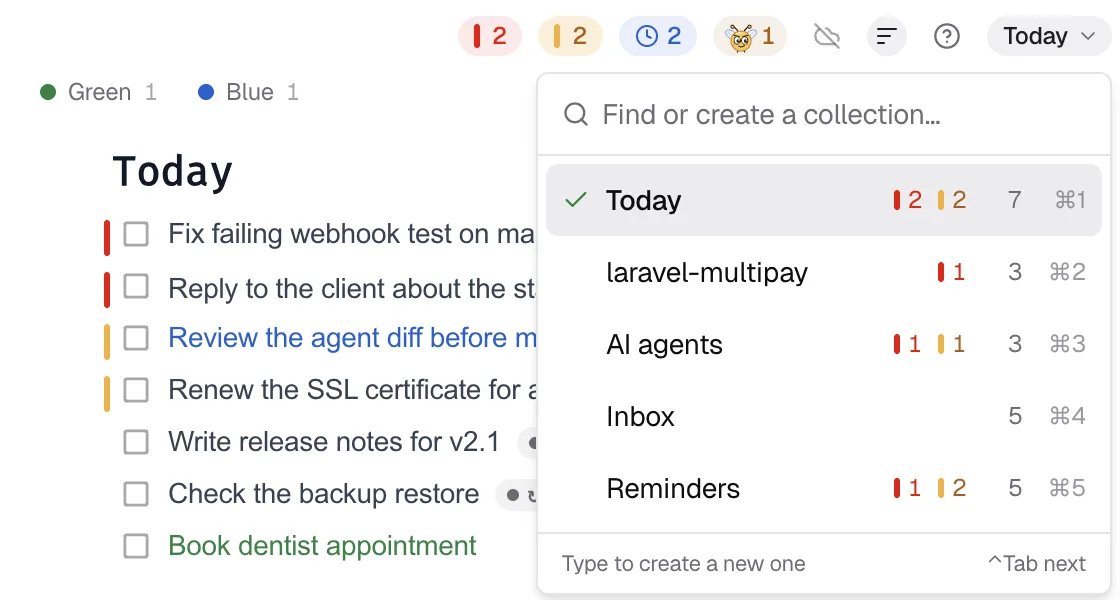
Then tell each agent which collection is its own. In each repo's CLAUDE.md (or AGENTS.md for other agents):
## Focus Pad

- This project's collection is "api".
- Add follow-ups and manual steps for me there with add_item. One task per step.
- Use color blue for tasks you add.
- Never change tasks in other collections. You may read them.
The agent can read any collection, but the rule keeps it writing only to its own.
Know who wrote what
Focus Pad does not record which agent added a task. Colors do the job well:
- In Focus Pad, name the colors of a collection, for example blue = "Claude Code", teal = "Codex", purple = "Me".
- In each agent's instructions, set its color.
- When the agent calls
list_items, it also gets yourcolorNames, so it can see the labels.
Now a glance at the window shows which tasks came from which agent.
A planner session that reads everything
One useful pattern: a separate session that does not code. It only reads.
Read all my Focus Pad collections. Which 3 tasks should I do before 17:00, based on priority and deadlines?
The agent calls list_collections, then list_items for each. It sees the priority, deadline and Pesky interval of each task and your local time, and answers with a short plan. If you agree, it can raise a priority or set a deadline with update_item.
The founder of DevWorkspace Pro runs this pattern every day. The planner is an agent called the Secretary, which lives in Buzz, Block's open-source workspace for people and agents. It keeps the big plans, keeps the other agents on track, and writes only the founder's own next actions to one Focus Pad collection.
When two writers touch one list
Agents and you can write at the same time. Focus Pad protects the tasks in three ways:
- Safe edits. To change or complete a task, the agent sends its
indexand its current text asexpectedText. If the list changed and the text at that index is different, the change is refused. The agent reads the list again and retries. - Other lines stay. A change to one task keeps every other line as it was: headings, notes, other tasks and color names.
- Live window. When an agent changes a task, the Focus Pad window updates at once. Your cursor and scroll position stay where they are.
Two cautions from the docs:
- If two tasks have the same text and swap places, the text check cannot tell. Give tasks different text, for example include the repo or file name.
- If you type in a collection at the same moment that an agent changes it, one change can be lost. Separate collections per project make this rare.
What each agent can and cannot do
| Can | Cannot |
|---|---|
| List collections and tasks | Rename or delete collections |
| Add tasks with priority, color, deadline, Pesky | Change headings, notes or color names |
| Change a task's text and fields | Move a task to another collection |
| Complete a task | Add notes or sub-tasks under a task |
| Make a new collection | Close a linked GitHub issue (you do that from Focus Pad) |
Where this fits with the rest of DevWorkspace Pro
DevWorkspace Pro runs Claude Code, Codex and OpenCode sessions in any project folder and can resume them after a restart. Focus Pad is where those sessions leave the work they cannot finish without you. To start the sessions, see run multiple AI coding agents. To send a GitHub issue to an agent, see send GitHub issues to AI agents.
Related
FAQ
Frequently asked questions
Can several agents use the same Focus Pad at once?
Yes. Each MCP request is complete on its own, so agents in different projects can connect to the same server. Give each project its own collection to keep the lists apart.
What if two agents change the same list?
To change or complete a task, an agent sends its index and current text. If another agent or you changed the list, the text does not match, the app refuses the change, and the agent reads the list again.
Can I tell which agent added a task?
Not automatically. A simple way is to give each agent a color in its instructions and name the colors in Focus Pad, for example blue = Claude Code. The agent sees your color names when it reads the list.
Does this work with Codex or OpenCode?
The server works with any MCP client that supports Streamable HTTP and a custom Authorization header. The app gives a ready command for Claude Code. For other clients, use the values in the Focus Pad MCP docs.
Is this the same as Claude Code agent teams?
No. Claude Code agent teams are an experimental feature where teammates share a task list inside one team, and a team belongs to one session. Focus Pad is a list that you and agents in any project share, with deadlines and reminders for you.