
DevWorkspace Pro is a desktop app for macOS, Windows and Linux with a Git tab that shows every changed file of your project with its diff, so you can read the changes, select the files and commit them without the command line. It costs $9 a month, $95 a year or $499 once.
It works for every project, whatever the stack. It sits in the same window as the code, the terminal and your AI sessions, which is handy when an agent has just touched ten files and you want to see what it did before you commit.
Read the diffs
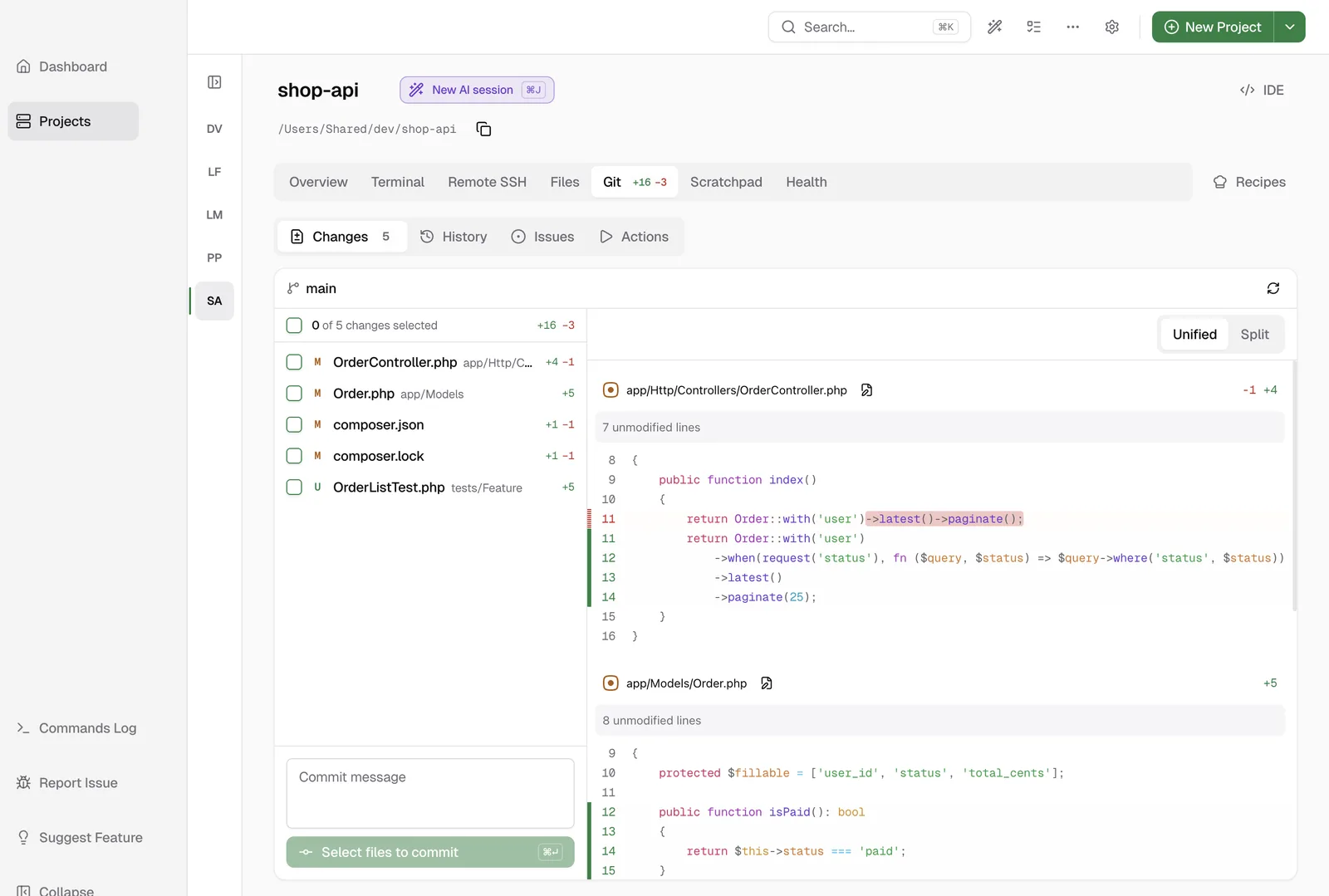
Open Git › Changes. The list on the left shows each file with a letter (M for modified, U for untracked, and so on) and the number of added and removed lines. The right side shows the diffs of all the files, one after the other. Click a file to go to its diff.
Changed words in a line are highlighted, and you can switch between Unified and Split. Lock files and minified files stay hidden at first. Click Load diff when you want to see one.
To change something you do not like, click the pen icon beside the file name. The file opens with the cursor on the first changed line.
Commit
- Select the files. A selected file is staged for the next commit.
- Type a commit message.
- Click Commit, or press Cmd+Enter (Ctrl+Enter on Windows and Linux).
Your commit hooks run as they do in a terminal. If a hook stops the commit, its output shows under the message box, and your message and selection stay, so you can fix the problem and commit again.
You can also move with the keyboard: J and K for the next and previous file, Space to select a file, and S for Unified or Split.
Look back at your commits
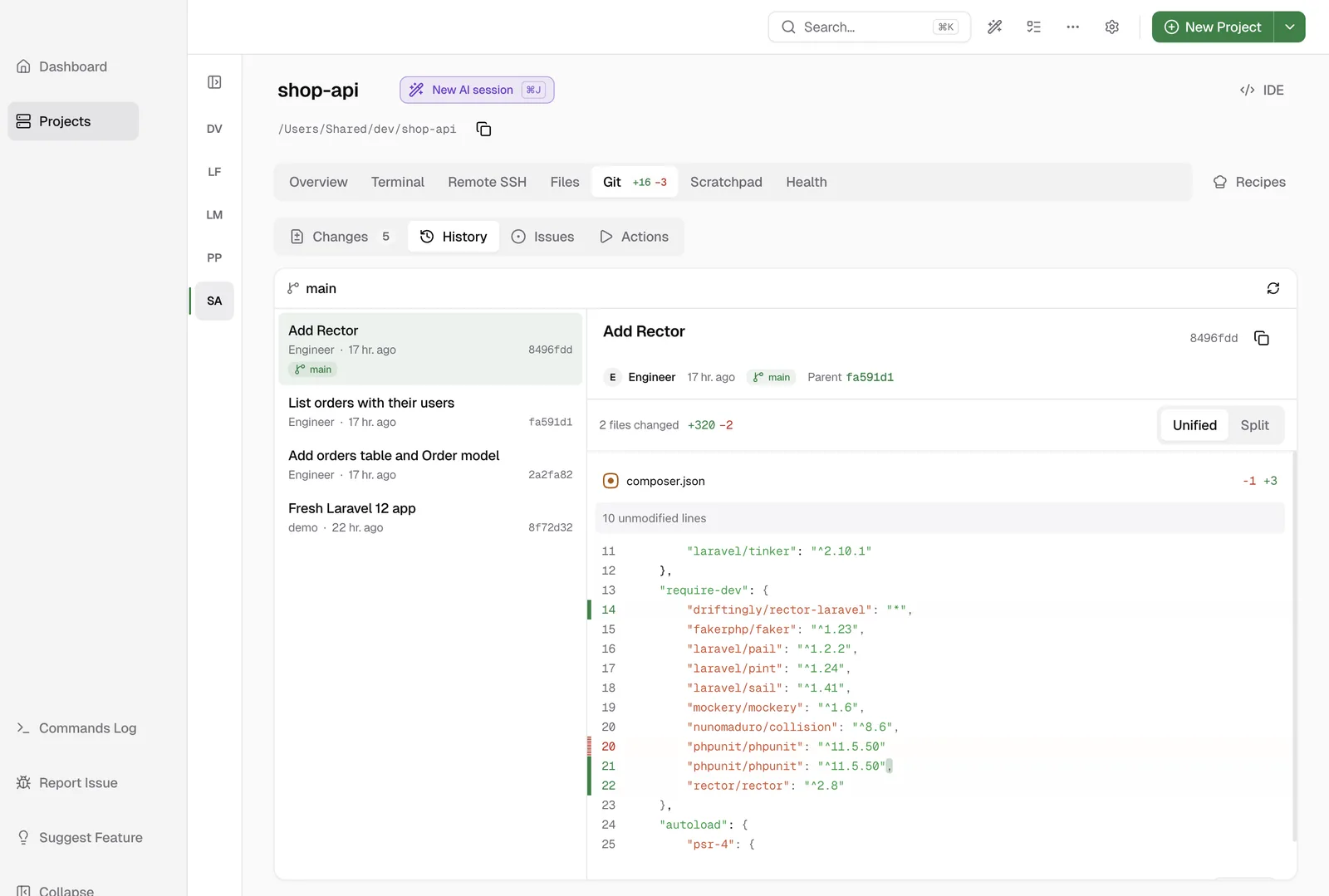
Git › History lists the commits on the current branch, newest first. Click a commit to see its full message, its parent and its diffs. This view is read-only.
Staging and pushing
The checkboxes stage full files. To push, use the terminal or your Git tool. The top bar shows how many commits you have to push and to pull.
Learn more
- Git Changes in the docs has every option and error message.
- Pricing
FAQ
Frequently asked questions
How do I review diffs and commit without the command line?
Open the project in DevWorkspace Pro and open Git, then Changes. Read the diffs on the right, select the files on the left, type a message and click Commit.
Can I stage part of a file?
Not in the app today. A checkbox stages the full file. If you stage some lines in a terminal, the checkbox shows a dash, so you can see that only part of the file is staged.
Does the app push my commits?
No. It shows how many commits you have to push and to pull, and you push from the terminal or from your Git tool.